 FireLookup
One-to-Many Reconciliation in Excel: Matching One Payment to Many Rows
Learn how to match one payment, bank deposit, or payout to multiple invoices or orders using Excel, and when grouped reconciliation is safer.
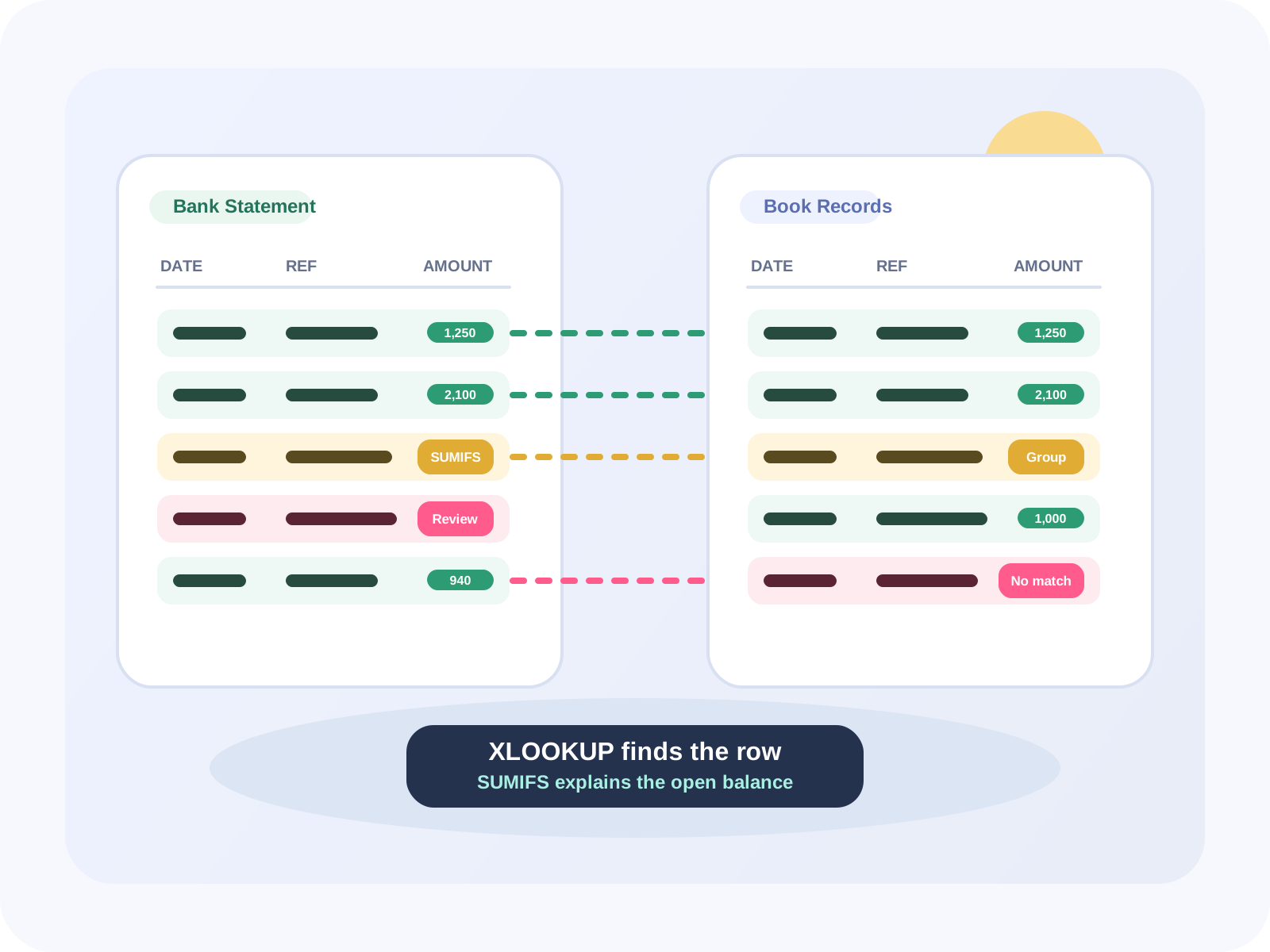
Simple reconciliation is usually described as one invoice in File A matching one payment in File B. Real finance and operations work is often messier: one bank deposit can match many invoices, one Shopify payout can match orders, refunds, and fees, and one Amazon settlement can include hundreds of rows.
That is one-to-many or many-to-one reconciliation. It is not just a lookup problem anymore. It is a grouped matching problem.
Example workflow
Imagine an invoice export with three Acme invoices for 250.00, 175.00, and 75.00. The bank export has one Acme batch payment for 500.00. The invoices add up to the deposit, but no single invoice row contains 500.00.
Manual Excel method
- Clean dates, amounts, customer names, payment references, currency, and amount signs.
- Run exact one-to-one matches first using stable keys like invoice ID, order ID, transaction ID, payout ID, or payment reference.
- Separate exact matches from unmatched rows on both sides.
- Create grouping candidates using customer, vendor, payout ID, settlement ID, deposit date, date range, currency, location, or entity.
- Use SUMIFS or pivot tables to compare grouped totals.
- Review exceptions manually and document the match rule.
=SUMIFS(Invoices[Amount], Invoices[Customer], [@Customer], Invoices[Invoice Date], ">="&StartDate, Invoices[Invoice Date], "<="&EndDate)Where Excel breaks
- There are hundreds or thousands of rows.
- Many possible combinations add up to the same amount.
- Fees, refunds, disputes, or reserves are mixed into payouts.
- Date windows vary by processor.
- Customer or vendor names are inconsistent.
- The reviewer needs an audit trail rather than hidden assumptions.
At that point the workbook becomes a mini-application: helper columns, pivots, SUMIFS, filters, manual notes, color coding, and hidden assumptions.
How FireLookup helps
- Upload two Excel or CSV files.
- Choose matching columns.
- Run exact matching first.
- Use fuzzy matching for messy names or descriptions.
- Use grouped matching for one-to-many or many-to-one cases.
- Export matched and unmatched rows.
- Keep an audit trail of matching logic.
Explore FireLookup
One-to-many reconciliation page
See how grouped matching fits the FireLookup workflow.
How to reconcile Excel and CSV files
Walk through upload, matching, review, and export.
FireLookup pricing
Review free row credits and paid row-credit plans.
XLOOKUP and SUMIFS bank reconciliation
Compare the manual Excel approach with a reconciliation workflow.
Excel reconciliation error tips
Catch spreadsheet issues that create false exceptions.
FAQ
What is one-to-many reconciliation?
One-to-many reconciliation is when one row in one file matches multiple rows in another file. A common example is one bank deposit matching many invoices or orders.
Can XLOOKUP handle one-to-many reconciliation?
Not by itself. XLOOKUP is best for one-to-one matching. For one-to-many matching, you usually need grouping logic such as SUMIFS, pivot tables, Power Query, or a reconciliation tool.
What is grouped matching?
Grouped matching compares sets of rows instead of individual rows. For example, it can check whether a group of invoices adds up to one payout amount within a specific date range.
Is Power Query better than Excel formulas for this?
Power Query can be better for repeatable transformations and merges, but it still requires setup and maintenance. Non-technical finance users may prefer a focused reconciliation workflow.
What should I review before accepting a grouped match?
Review date range, amount total, customer or vendor, references, duplicate amounts, refunds, fees, and whether another combination of rows could produce the same total.
Explore more
More spreadsheet reconciliation resources
Explore pricing, reconciliation guides, and support resources for teams comparing Excel and CSV files with an audit trail.