Automate Data Reconciliation in Excel with Power Query & Copilot
Use Power Query to combine reconciliation files, then apply Excel cleanup and Copilot-assisted review where your Microsoft 365 plan supports it.
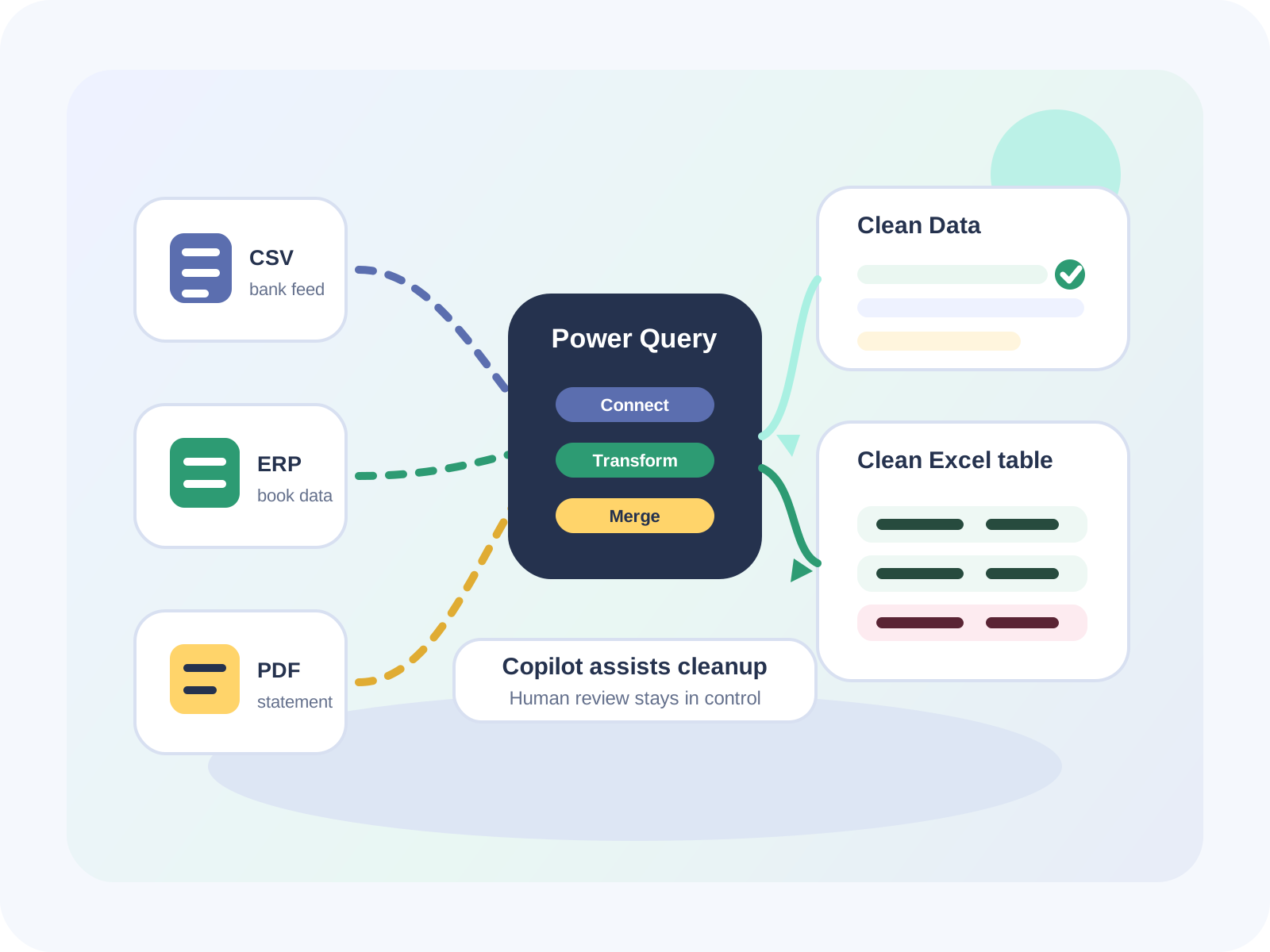
Manually matching thousands of spreadsheet rows is slow, fragile, and hard to explain during review. Excel can automate much of the preparation with Power Query, and Copilot can assist with cleanup or analysis in eligible Microsoft 365 environments.
The important control is scope: let automation prepare the file and highlight problems, but keep the final reconciliation decision reviewable by a person.
Step 1: import and combine data with Power Query
Power Query can connect to workbooks, CSV files, databases, and other sources, then shape the data without changing the original source. Load your bank statement and internal records as separate queries, promote headers, remove unused columns, and set the correct data types.
- Use Get Data to load each file into Power Query.
- Remove report clutter and repeated headers.
- Set dates, amounts, IDs, and text fields to the right data types.
- Merge or append queries depending on whether you need a side-by-side join or one combined review table.
Step 2: clean the data before matching
Clean Data with Copilot can detect issues such as text inconsistencies, number format problems, and extra spaces where the feature is available. You can also use Excel's standard cleanup tools: TRIM, CLEAN, VALUE, Remove Duplicates, and Power Query transformations.
For reconciliation, the best cleanup rule is simple: every amount should be numeric, every date should follow one standard, and every match key should be stable enough to survive source-system wording changes.
Step 3: use Copilot carefully for classification and explanation
Microsoft's COPILOT function is useful for semantic tasks such as classifying text or summarizing cell content, but Microsoft lists it as a preview-channel feature and warns it is designed for generative and exploratory tasks. Do not use AI output as the sole source of truth for financial calculations.
=COPILOT("Classify these transaction descriptions as subscription, refund, fee, or other", A2:A50)A safer pattern is to use Copilot-assisted classifications as a draft review aid, then let deterministic formulas or FireLookup handle the actual matching and totals.
Step 4: refresh the workflow instead of rebuilding it
Once the query steps are saved, future reconciliations become a refresh workflow. Replace the source files, refresh the queries, review the exception table, and export the same summary structure each period.
- Keep raw source files unchanged.
- Document each query step with clear names.
- Use conditional formatting to highlight unmatched or duplicate records.
- Move one-to-many or many-to-many matching into FireLookup when spreadsheet logic gets hard to review.
Where FireLookup fits
Power Query is excellent at cleaning and combining files. FireLookup is the better place for guided reconciliation matching, exception review, grouped matches, and audit-ready exports. Use Excel for preparation and reporting, then use FireLookup when the comparison step needs to be repeatable.
FAQ
Can Power Query automate reconciliation in Excel?
Power Query can automate repeatable import, cleanup, merge, and refresh steps. It is strongest when the source files have consistent columns, clean data types, and stable keys.
Can Copilot do financial reconciliation by itself?
Copilot can assist with cleanup ideas, explanations, and draft classifications, but reconciliation totals and final match decisions should stay deterministic and reviewable.
What should FireLookup handle instead of Excel?
Use FireLookup for the comparison, grouped matching, exception review, and export workflow when Power Query or formulas become hard for reviewers to audit.
Further reading
Microsoft: about Power Query in Excel
Power Query connects, transforms, combines, and refreshes data from multiple sources.
Microsoft: merge queries in Power Query
Reference how Power Query joins related tables on common columns.
Microsoft: COPILOT function
Check current licensing, preview availability, and appropriate use cases for the COPILOT function.
Explore FireLookup
Prepare files with the reconciliation checklist
Clean source data before Power Query, formulas, or FireLookup begin matching.
Compare this with the XLOOKUP workflow
Use formulas when your bank reconciliation is smaller and mostly one-to-one.
Run the guided FireLookup workflow
Use guided matching and exception review when spreadsheet logic becomes hard to maintain.
Explore more
Sigue explorando FireLookup
Compara precios, revisa la guía de preparación de archivos y aprende flujos de conciliación de hojas de cálculo desde estas páginas.