Five Excel Tips to Catch Common Reconciliation Errors Early
Prevent false reconciliation exceptions by fixing text amounts, weak keys, duplicate rows, filters, and ownership before review starts.
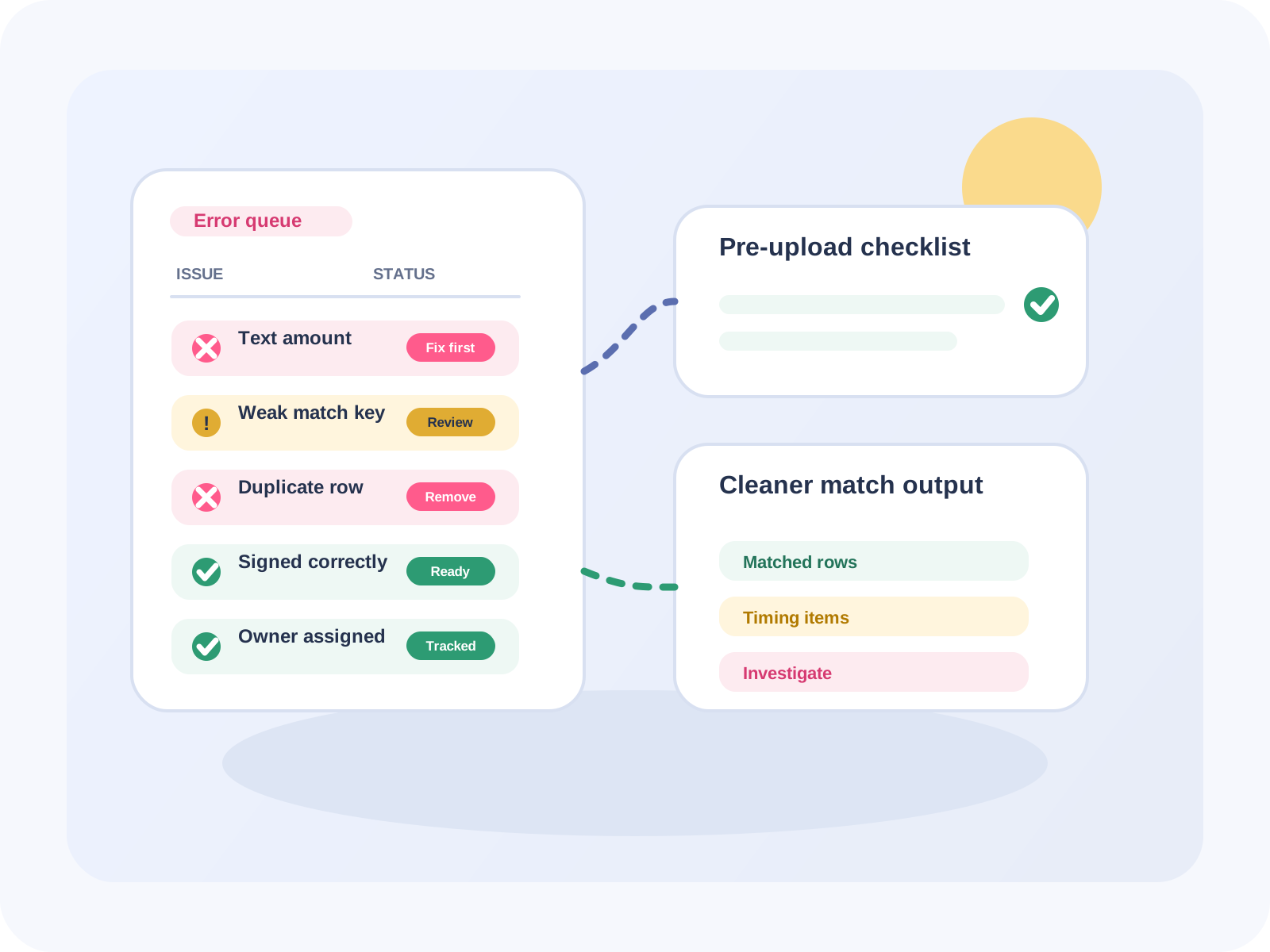
No reconciliation process is perfect, but many spreadsheet errors are preventable. Text-formatted amounts, unstable keys, duplicate rows, and unlabeled exception queues make clean records look broken.
Use these five controls before the first match run so reviewers spend time on real differences instead of avoidable spreadsheet noise.
1. Ensure amounts are numeric and signed correctly
Imported amounts often include commas, spaces, parentheses, debit and credit labels, or text formatting. Convert amounts into real numeric values and decide whether outflows are negative on both sides.
- Use VALUE, Text to Columns, or Power Query type changes to convert text amounts.
- Normalize debit and credit signs before totals are calculated.
- Keep explanatory text out of amount fields.
2. Choose stable match keys
A good match key is narrow, consistent, and available on both files. Invoice number, transaction ID, bank reference, or date plus reference usually works better than description text.
Standardize zero padding, remove prefixes only when the rule is documented, and trim spaces before generating the final key.
3. Remove duplicate rows before matching
Duplicates inflate unmatched queues and distort totals. Run a duplicate check before matching so repeated headers, duplicated exports, and true repeat transactions are separated.
=COUNTIF([Reference], [@Reference])A duplicate count greater than one should not automatically delete the row. It should trigger review so the team can decide whether the entry is a true duplicate, a split transaction, or a valid repeat.
4. Use filters and conditional formatting
Filters make the exception queue manageable. Conditional formatting makes it obvious where reviewers should look first: missing matches, amount differences, duplicate keys, or stale unresolved items.
- Filter No Match rows immediately after the first pass.
- Highlight amount differences in a consistent color.
- Give formula errors friendly labels such as Check invoice or Missing reference.
- Keep matched, timing, and investigation items in separate buckets.
5. Implement a pre-upload checklist and assign owners
A checklist prevents recurring errors from becoming monthly habits. Define required columns, cleanup steps, match keys, amount rules, owner names, and due dates before the file is uploaded or matched.
Every unresolved item should have an owner and next action. That turns a reconciliation from a spreadsheet exercise into a reviewable control.
When to move beyond Excel
If the team repeats the same cleanup every period, has frequent grouped matches, or needs a clearer audit trail, move the comparison into FireLookup. Excel can remain the reporting layer while FireLookup handles matching and exception export.
FAQ
What causes most false reconciliation exceptions in Excel?
The most common causes are text-formatted amounts, inconsistent signs, weak match keys, duplicate rows, repeated headers, and exception queues with no owner or reason code.
How do I reduce unmatched rows before reconciliation?
Normalize amount formats, trim spaces from references, remove report clutter, review duplicates, and document the exact match key before running formulas or software matching.
Can conditional formatting replace reconciliation software?
Conditional formatting helps reviewers spot differences, but it does not manage grouped matching, reruns, owner tracking, or audit-ready matched and unmatched exports.
Further reading
Microsoft: top ways to clean data
Reference common cleanup tasks for spaces, text numbers, dates, and duplicates.
Microsoft: filter data in a range or table
Use filters to isolate exception categories after the first reconciliation pass.
Microsoft: conditional formatting
Highlight duplicates, missing matches, and amount differences for faster review.
Explore FireLookup
See the full false-exception error guide
Review the spreadsheet patterns that create noisy unmatched queues.
Use the reconciliation checklist
Apply the pre-match controls that prevent avoidable reconciliation errors.
Compare FireLookup plans
Choose a plan for recurring Excel and CSV reconciliation workflows.
Explore more
Sigue explorando FireLookup
Compara precios, revisa la guía de preparación de archivos y aprende flujos de conciliación de hojas de cálculo desde estas páginas.